Tablet cannot connect to NXT Wash
Identify the tablet role and where the connection fails.
White Water uses the Samsung Galaxy Tab Active5. See the tablet and its equipment guide.
Choose the NXT Wash Wi-Fi network
NXT Wash-related Wi-Fi names always end in -N. Select the site’s assigned network with that suffix. Use the credentials provided for that network.
Check the POS middleware connection
When the POS app is open, the red dot and Disconnected text below Scanning LP, shown here, mean it is disconnected from its middleware.
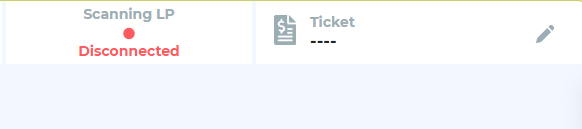
If the POS app shows anything other than this disconnected state, it is connected to its middleware. Use this indicator to check the POS-to-middleware connection.
Approved browser
Use a Chromium-based browser, including Google Chrome or Chromium, for NXT Wash. Firefox is not approved.
Identify the tablet's role
The setup note distinguishes POS, kiosk, and tunnel loader use. These may open different addresses. Support must supply the correct local server address for kiosk and loader tablets.
Staff checks
- Confirm the tablet is charged and connected to the site's assigned NXT Wash network ending in
-N. - Record the page address and exact error message.
- Tell support whether another device can open the same function.
- For a POS tablet, distinguish the POS website opening from the local middleware connection being ready.
- If remote assistance is needed, follow the site's approved ScreenConnect session process.
Certificate-related messages
The setup note describes installing a site middleware CA certificate on Android. This is a technician-assisted setup step; the certificate and server address must be confirmed for the site.
Recovery check
Confirm that the intended home page opens and the required local device connection works. Have the authorized operator check the intended POS, kiosk, or loader function.