Is the POS connected to its middleware?
Check the POS connection indicator, browser, Wi-Fi and middleware client count.
Check the POS middleware connection
When the POS app is open, the red dot and Disconnected text below Scanning LP, shown here, mean it is disconnected from its middleware.
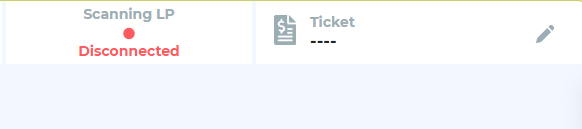
If the POS app shows anything other than this disconnected state, it is connected to its middleware. Use this indicator to check the POS-to-middleware connection.
Check from the middleware computer
Support can also inspect the middleware logs and compare connected-client counts with the expected devices. The zero-client log example shows no clients connected to that instance. Counts below or above the expected number help identify missing or extra connections.
The POS indicator and middleware client count establish connection evidence. Check downstream recognition, payment and wash-sending functions separately where applicable.
Approved browser
Use a Chromium-based browser, including Google Chrome or Chromium, for NXT Wash. Firefox is not approved.
If it shows Disconnected
On a Wi-Fi device, confirm that it is on the site’s assigned NXT Wash network ending in -N. Record the indicator, device and site for support. The tablet connection guide covers application and connection checks.
Contact WWX Support: (401) 209-1110 or submit a ticket. Only White Water technicians contact NXT Wash.