Use the below links to find information about the XPT 5 Hardware and configuration.
Hardware Links
Software and configuration Links
This knowledge base is intended for you to understand the basic functions, and related setup of the XPT 5 Self Service Kiosk, after reviewing these documents you should be able to:
Troubleshoot issues with related hardware
Troubleshoot gates
Processing transactions and memberships
Performing maintenance on the XPT and its related hardware
Troubleshooting
XPT shows 'No Configuration' or unable to connect to SiteWatch (SiteWatch Not Connected)
1. Check the top door lock mechanism to be certain it is turned all the way in its slot to the locked position, failing to turn the key all the way when putting the lock back in the door often is the main cause of the XPT being unable to connect to the SiteWatch configuration.
a. If the door lock appears to be correctly placed, you can also double check the sensor for the lock by opening the door and temporarily disconnecting one of the wire ends from the sensor shown in the below image below, this should trick the system into thinking the door lock is in place.
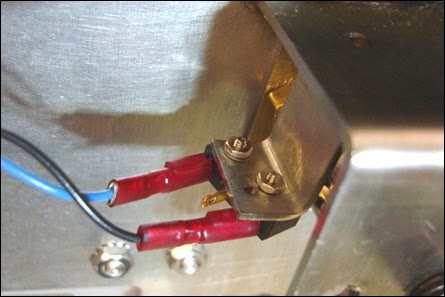
2. If the door lock doesn't appear to be the issue, go into maintenance mode on the XPT by holding down the help button for 3 seconds and inputting your employee login.
a. On the main status screen determine if the XPT is getting a proper ip address somewhere in the 192.168.100.X range, if it is not in that range then a network connection has been lost between the XPT and the office.
b. First check that the network cabling and switch inside the XPT are fully connected and powered, if there are any loose or disconnected ethernet cables, reconnect them with assitance from IT Support.
i. If the network switch inside isnt indicating any power then it is advised to purchase and replace this switch.
ii. If everything inside the system appears to be powered on and connected, move the primary ethernet connection for the XPT to a different open port on the network hub.
iii. If none of the above issues are present, power cycle the XPT to see if it reestablishes a connection the Windows network.
If a reboot doesnt resolve the issue, begin diagnosing issues with the network starting with the Netgear switch and working back to the Arista router. Work with an IT specialist for assistance.
3. If the XPT network hardware appears to be functioning properly, next check the office network rack and identify the port on the Netgear switch that is tied to the XPT having an issue.
a. If all XPTs are having an issue connecting it is advised to first perform a reboot of the SiteWatch server to make sure it is not having network issues. Reach out to an IT specialist for assistance.
b. If only one XPT is failing to connect, identify its port on the Netgear and move it to another available port on the same bank of ports (typically in the red section).
c. Facilities/IT may have to perform a line test on the network run to determine if there is bad communication on the data cable itself. Repair/replace as necessary.
d. If all of the above fails, reach out to IT support for further troubleshooting.
XPT shows a blank black screen or white screen on boot up
there may be an issue with the display module or its connection to the control module. Reach out to IT support and troubleshoot both pieces of hardware with the hardware links above on this page.
XPT fails to indicate any power when the power switch is cycled on
Follow the troubleshooting steps in the 'Power Module' documentation.
White Water guide