Goal: Give operations a better understanding of the settings involved in FastPass reads, preventing cross reads and troubleshooting vehicles not being read on site.
Oftentimes sites will experience issues with the FastPass reader not picking up tags on vehicles. There are generally two causes for ongoing issues reading a FastPass tag: proximity loop (also referred to as ‘b loop’ on your gate interface) failure and incorrect hardware settings. Lets look at how to quickly identify the cause and some tips for resolving each.
Scenario 1: Reader Doesn't Turn On - Proximity Loop Failure
When the vehicle approaches the XPT, a set of trigger loop wires under the vehicle magnetically detect the vehicle approaching and activate the XPT and subsequently, the FastPass reader to begin attempting to read the vehicle’s tag. At this time you should see a blinking green light on the reader enclosure indicating the tag read is being attempted, if it fails to read the tag after a short period of time this light may turn yellow indicating an inability to read. If that happens proceed to Scenario 2 below.
If the FastPass indicator light never blinks or illuminates then you likely have a proximity loop failure. You can look at the screen on the gate and if loop B is being triggered it should be blinking. If it is not blinking, clear the lane and recalibrate the loop detector by pressing the right control button on the gate interface (shown to the right), pressing up arrow until Detector 1 (A-B) is highlighted, pressing the right control button again then selecting ‘Recalibration’. (Or follow more advanced steps from the Gate Troubleshooting documentation here).
If recalibration does not solve the issue you can then enter the same menu option and begin increasing the B Loop sensitivity by +1 at a time until you begin to register a vehicle reliably. Be sure to test a vehicle between each raise and do not raise the sensitivity by more than 1 per test.
If none of the above resolve your issue please submit a MaintainX work order to inspect the Loop and contact IT to get your lane set to always read until the loop can be fixed.
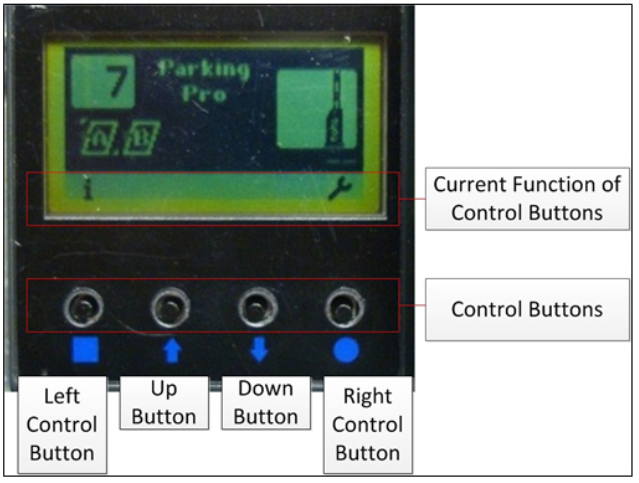
*The Magnetic Gate Interface
Scenario 2: FastPass Reader Fails to Read
If the green light on the FastPass is blinking but tags fail to read it is likely the reader itself may be using the wrong settings. On the next page is a snapshot of the settings you will find by going into the XPT’s maintenance mode, selecting enable/test hardware, then FastPass reader. We will discuss what the settings mean and what they should be set to at your site.
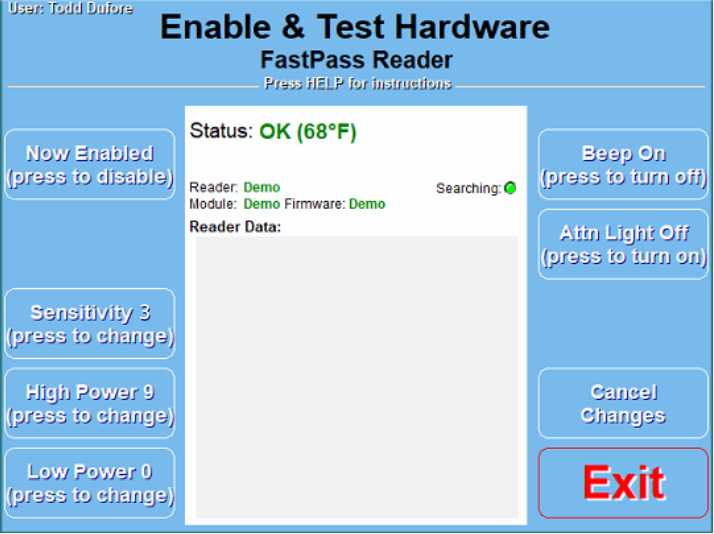
*The XPT Maintenance Mode Screen for FastPass Readers
*Note: The status screen for the reader should read ‘Status: OK’ if the XPT is properly communicating with the reader. If it is not reading OK please call IT right away to troubleshoot.
You will see 3 settings on the hardware screen we need to cover:
Sensitivity: A rating from 1-9 of the overall ‘sensitivity’ of the reader. The sensitivity is analogous to the area or reading zone the reader will accept reads from. A higher number makes reading tags MORE difficult and will lead to a higher number of cross reads as the reader is expanding the cone, or read area that it is accepting incoming signals from. In general we want the sensitivity to be 2 or 3 and never above a 5. If your sensitivity is not within the suggested limits start by setting it to a 3 and adjust as necessary.
High Power: When the reader first initializes it sends out a ‘high power’ communication signal to pick up a tag in the read area. This setting indicates what power level the reader is using to get that initial read. A high power rating of 7-9 is recommended.
Low Power: Often the cause of most tag read issues, the low power preferred setting by default is 0, which disables the need for the reader to get a low power read altogether. The low power read helps to ensure fewer cross reads by having a tag read require first a high power read and then a low power read to be certain the reader is picking up a tag in its lane and not a tag far away.
If your site is experiencing no reads make sure this setting is 0 and the high power is at 9.
If your site experiencing many cross reads, enable the low power read by setting it to a relatively high number like 7 with a high power of 9 and test for accurate reads. Low power should never go below a 5 or you will likely fail to read any tags. Please only leave low power enabled if you are troubleshooting with the assistance of IT.
White Water guide · Download PDF ↗