Samsung Galaxy Tab Active5
White Water’s NXT Wash tablet, with product photos and quick links for connection checks and setup.
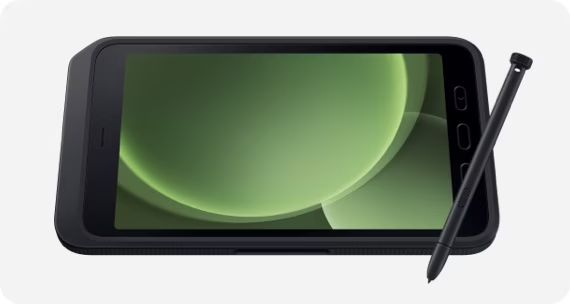
More views
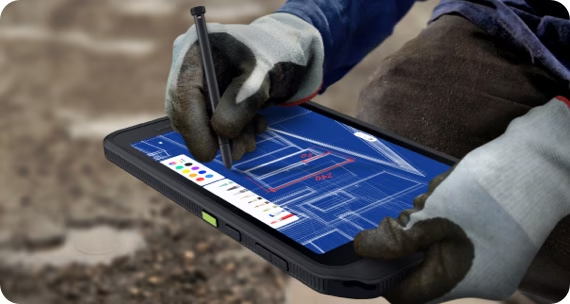
The tablet at your site
White Water uses the Samsung Galaxy Tab Active5. The photos show its rugged housing, front buttons and S Pen. The tablet can serve as an NXT Wash POS, kiosk or tunnel loader, according to its assigned setup.
For the on-site team
- Open the NXT Wash function assigned to this tablet.
- Connect to the site’s NXT Wash Wi-Fi network, which always ends in
-N. - In the POS app, check its middleware connection indicator. The red Disconnected state means it is disconnected; another state in the open app means it is connected.
If it cannot connect, use Tablet cannot connect to NXT Wash. Give support the location, tablet role, Wi-Fi name and a photo of the screen.
For installation and IT
Charge and configure tablets early in the installation, as described in the White Water overview. The tablet setup guide covers application, browser and connection setup.
Optional Samsung fleet-management tools include Knox Manage for device deployment and administration, Knox E-FOTA for scheduling OS/firmware updates, and Knox Asset Intelligence for battery, app and connection visibility. White Water IT must confirm licensing and deployment before using these tools.
Manufacturer reference
Open the Samsung Galaxy Tab Active series PDF.
The PDF covers several models. Use the Active5 specifications for White Water, not Active5 Pro features.
Getting help
Contact WWX Support: (401) 209-1110 or submit a ticket. Only White Water technicians contact NXT Wash.